
GeForce NOW Cloud Gaming
NVIDIAEntertainment
3.57.66K Reviews
- Version
- Varies With Device
- Installs
- 10.00M
- Age Rating
- Teen
Screenshots
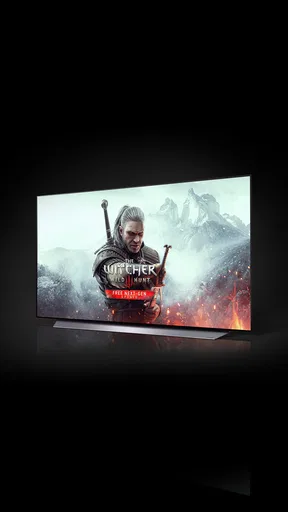
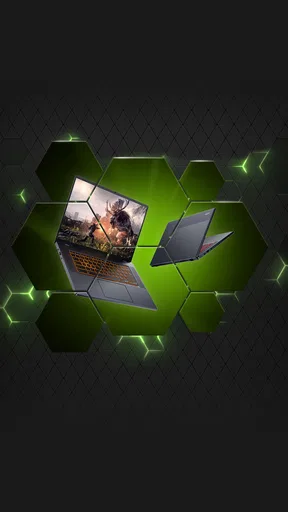
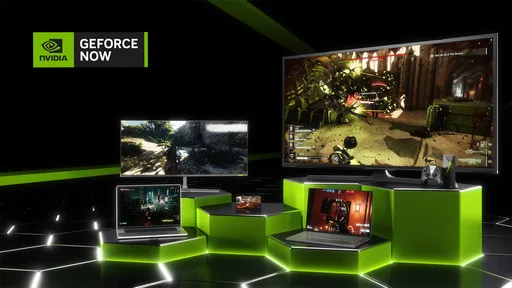
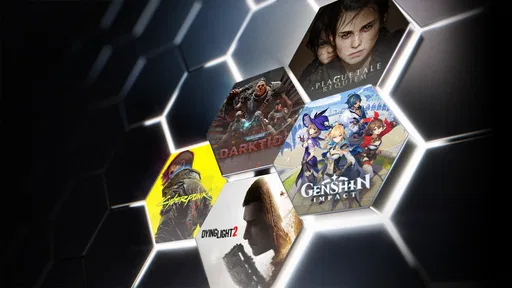
Our Review of GeForce NOW Cloud Gaming
 Analysis by Appyee
Cloud gaming sounds simple until the first session exposes the details: the quality of your connection, the device in your hands, the game you want to play, and the controls you expect all affect the result. I spent time with GeForce NOW Cloud Gaming to see whether it can become a practical way to play rather than just an interesting alternative to a gaming PC. My overall impression is that it works best when you treat it as a repeatable routine, not as a magic replacement for every local gaming setup.
Developed by NVIDIA, this free entertainment app brings supported PC games to compatible Android and iOS experiences through streaming. Its audience is already substantial, with more than ten million installs, although its average rating sits at about 3.5 from roughly 122 thousand ratings. That combination tells me something useful: plenty of people are interested in the idea, but the experience can vary enough by device, network, game, and expectation to produce very different opinions.
The service is marked for Teen users, and it was released on February 4, 2020. I would not choose it simply because it costs nothing to install. I would choose it if I wanted access to my supported PC library in situations where carrying or upgrading a gaming computer was inconvenient. That distinction matters throughout the experience.
Building a dependable everyday workflow
My most reliable approach begins before launching a game. I first decide whether I am playing for a short session or settling in for a longer one. For a quick break, I prefer a familiar title that loads predictably and does not demand perfect precision. For a serious session, I prepare the phone, controller, and connection first. This small change prevents the common mistake of judging the service during a rushed launch on an unsuitable network.
A realistic example is playing away from my desk after work. I can use a phone, connect a controller, open the app, and continue with a supported PC game instead of moving a computer or waiting for a large local installation. That is the strongest practical argument here. The game is being processed remotely, so the mobile device does not need to perform like a gaming desktop. However, the phone still needs a comfortable screen, stable connectivity, and controls that suit the game.
I found a controller much more appropriate for action games, driving titles, platformers, and anything requiring consistent camera movement. Touch controls can make a session possible, but they are not automatically comfortable. Virtual buttons occupy valuable screen space, and fast combinations feel less natural than physical inputs. For slower strategy games, turn-based titles, or brief testing, touch may be acceptable. For competitive play, I would avoid assuming that an on-screen layout can replace a controller.
Another useful habit is to launch the app and game before I am already committed to a narrow time window. Cloud sessions involve more steps than opening a locally installed game: the app has to connect, the selected title has to start remotely, and the stream has to become responsive. When everything is ready, the process can feel impressively direct. When the network is unstable or the service needs another sign-in, a five-minute break can disappear quickly.
The account and library side also shapes the workflow. This is not a self-contained mobile game collection where every title is automatically available after installation. I think of it as a doorway to compatible PC gaming, which means the games I want must fit the service and my existing setup. That makes it especially appealing to someone who already owns supported games, while it is less compelling for a person expecting a large, independent mobile catalog included with the app.
Before a trip, I would identify one or two games I know I want to play and test them at home on the same device I plan to carry. This reveals more than a general speed test. A connection can look fast yet still feel inconsistent during streamed camera movement or aiming. Testing the actual routine also exposes practical issues such as awkward controls, a low battery, or a login step that becomes annoying when repeated.
Settings that deserve attention before chasing image quality
The first settings I check are the ones that influence how the stream behaves on my particular connection. I prefer consistency over maximum visual quality. A sharp picture is attractive, but a sudden drop in responsiveness is much more distracting during play. If the app offers choices between visual quality and data-conscious operation on my device, I treat them as situational tools rather than permanent rankings.
At home on a reliable connection, I can prioritize a cleaner image and enjoy larger games on a small screen with fewer compromises. Away from home, I become more conservative. Mobile data can be expensive or limited, and cloud gaming can consume it faster than ordinary browsing or video. I would not begin a long session on cellular data without understanding my plan and watching how quickly the connection behaves. The free price of the app does not make network usage free.
Display settings also deserve a practical check. A phone with a bright, high-resolution screen can make streamed games look excellent, but visual clarity cannot repair input delay. I would rather accept a slightly softer picture than play with controls that feel late. This is one of the most important trade-offs for experienced users: responsiveness usually matters more than a perfect-looking stream.
Audio is easy to overlook. I prefer headphones for story-heavy games and for public places, but I keep the volume comfortable because the stream itself is only one part of the experience. Notification sounds, Bluetooth reconnects, and a controller that quietly changes its connection can interrupt a session more than expected. A quick device check before launching saves more frustration than repeatedly adjusting the game afterward.
Screen orientation and control placement are worth testing with the actual game, not just the app menu. A layout that looks fine in a calm opening area may cover important information once the action begins. I move controls away from the parts of the screen I need to read, then play long enough to see whether my thumbs trigger them accidentally. If the game is designed around a keyboard, mouse, or controller, I take that as a sign to use the matching input method whenever possible.
I also pay attention to the difference between a setting that changes the stream and one that changes the game. Cloud gaming can make a demanding title accessible on a modest mobile device, but it does not redesign the title for a small screen. Text may remain tiny, menus may be built for a monitor, and interface elements may be difficult to tap. In those cases, lowering stream quality will not solve the underlying usability problem.
Faster patterns that make repeat sessions less awkward
Once the basic routine works, the biggest gains come from removing repeated decisions. I keep one preferred controller ready, use the same comfortable network when possible, and avoid changing several settings at once. If a session suddenly feels worse, I can then identify whether the issue came from the connection, the device, the input method, or the game itself.
I also group games by the kind of session they support. A short wait is better suited to a game that resumes quickly and does not punish a brief interruption. A long evening is better suited to a title where the streamed format feels stable and the interface is readable. This sounds obvious, but it prevents me from judging every game by the same standard. A slow strategy game and a precision action game expose completely different weaknesses in remote play.
For touch users, I recommend learning the control layout in a safe area before entering a difficult mission. I look for the buttons I use most, check whether my hand blocks the action, and decide whether camera movement feels manageable. This is more efficient than discovering during a demanding encounter that an essential control sits beneath my palm. If the layout remains uncomfortable after a fair test, I would switch to a controller or choose another game rather than forcing the experience.
Experienced users can also reduce friction by treating the app as part of a larger gaming setup. I keep the mobile device charged, make sure the controller has power, and close unnecessary activity that might compete for attention or connectivity. I do not expect these habits to transform a weak network into a strong one. They simply remove avoidable variables, which makes troubleshooting much faster.
When a session stutters, I resist immediately blaming the game. I first ask whether the problem appears in every title or only one. If every game feels affected, I inspect the connection and device conditions. If one title is difficult while another is comfortable, the problem may be the game’s control demands, interface scale, or sensitivity to delay. This simple comparison is more useful than changing settings randomly.
Another efficient pattern is to use the service for access rather than permanence. I may play a game remotely while traveling, then return to local hardware for competitive sessions or long campaigns. That hybrid approach is more realistic than demanding identical performance everywhere. GeForce NOW Cloud Gaming is valuable when it fills a gap: a spare hour, a second screen, or access to a library without bringing the main machine along.
Where the advanced experience reaches its limits
The central limitation is that remote play adds a network between the game and the player. Even when the picture looks smooth, the controls may not feel identical to a locally running game. I notice this most in aiming, timing-based actions, racing, and competitive matches. Some players will adapt easily; others will find the extra distance unacceptable. I would not select this as my first choice for serious competitive performance unless I had already tested the exact setup and felt comfortable with it.
Network quality is not only about headline speed. Stability, congestion, and consistency matter. A connection that works perfectly for ordinary video can still produce an unpleasant gaming session if it fluctuates. Shared household activity can also change the experience without warning. If someone begins a large download or a high-demand stream, the game may become less responsive even though the app itself has not changed.
There is also a psychological limit. With local gaming, I feel that the machine belongs entirely to the session. With cloud gaming, I am depending on a service, a connection, and account access at the same time. That can be perfectly acceptable for casual play, but it makes the experience less self-contained. I would skip it if I need guaranteed offline access, want to play in places with unreliable connectivity, or dislike the idea of troubleshooting a stream before playing.
The mobile format creates another trade-off. A phone is wonderfully portable, but a small display can make detailed interfaces tiring. Games built for a television or monitor may remain technically playable while being less enjoyable. A tablet or larger screen can improve readability, but it does not remove network delay or make touch controls ideal. I consider screen size and input method together rather than treating the app as equally suitable on every device.
Compared with installing a game locally, this approach saves local storage and reduces hardware demands, but it sacrifices independence from the connection. Compared with ordinary mobile games, it can provide access to more demanding PC experiences, yet those games may not have been designed around touch, short sessions, or a phone-sized interface. Compared with remote play from a personal computer, the advantage is that the gaming computer does not need to be running beside me, while the trade-off is that I am relying on NVIDIA’s cloud environment and the supported game ecosystem rather than my own machine.
Privacy, account management, and age suitability also deserve ordinary common sense. The app is rated Teen, so families should consider the content of the individual games rather than assuming the platform rating describes every title equally. I would review the games being accessed and keep account details protected, especially on a shared device. These are not reasons to avoid the app, but they are part of using a cloud gaming service responsibly.
The rating of about 3.5 from more than 122 thousand ratings reflects why expectations need to be realistic. I do not read that number as proof that the app is poor, nor as a reason to ignore reported friction. It suggests a mixed experience, which matches my own conclusion: the service can be genuinely useful when the setup is right, but the setup is part of the product.
Who should use it, and who should choose something else?
I would recommend it to an existing PC gamer who wants flexibility. It makes sense if you already have compatible games, own a comfortable controller, and regularly find yourself away from your main computer. It is also appealing for someone with a capable but non-gaming mobile device who wants to try demanding games without installing large files locally.
I would be more cautious recommending it to someone whose main interest is competitive shooters, rhythm games, or other genres where tiny timing differences matter. I would also hesitate for a person with unreliable home internet, limited mobile data, or no interest in using a controller. In those situations, a locally installed mobile game or a conventional PC setup may be less impressive on paper but more dependable in daily use.
The free entry point makes experimentation easy, but I would still test the complete path before reorganizing my gaming habits around it. Install the app, sign in, try a familiar supported game, use the intended controller if you have one, and test it during the hours when you normally play. That tells you more than judging the concept from screenshots or from someone else’s connection.
For me, the best role is not “replace every gaming device.” It is “make my existing library more reachable.” That narrower purpose is also where the service feels most convincing. I can accept occasional setup work when the reward is playing somewhere I otherwise would not bring a gaming computer.
My verdict after settling into the routine
GeForce NOW Cloud Gaming is a capable and convenient entertainment app when I use it with the right expectations. NVIDIA has made the idea of accessing demanding PC games from a mobile device feel practical, especially for people who already own compatible titles and value portability. The strongest experience comes from a stable connection, a physical controller, sensible stream settings, and a willingness to choose games that tolerate remote play well.
I would not call it a universal substitute for local gaming. The connection remains the deciding factor, touch controls can be awkward, small screens can expose interface problems, and competitive players may notice responsiveness limits that casual players barely feel. Those are meaningful compromises, not minor footnotes.
Still, I like the app most when I stop treating it as a technical demonstration and use it as a dependable second route into my games. My repeatable routine is simple: prepare the device, choose the right input method, favor stability over visual excess, and match the game to the session. If that sounds reasonable to you, the free installation makes GeForce NOW worth trying. If you need offline certainty or the lowest possible input delay, I would stay with local gaming instead.
My final recommendation is conditional but positive: use it as a flexible extension of PC gaming, not as a promise that every game will feel exactly like it does on a dedicated machine. When the network and controls cooperate, it can turn an ordinary phone or tablet into a surprisingly useful gaming screen.
Verdict
Strengths of GeForce NOW Cloud Gaming
- Streams demanding PC games on phones, tablets, and supported TVs.
- No gaming PC or lengthy downloads are required.
- Supports many popular controllers and keyboard-and-mouse setups.
- Game libraries can sync with services such as Steam and Epic Games.
- Higher tiers offer priority access, better performance, and longer sessions.
Limitations of GeForce NOW Cloud Gaming
- You must own or purchase most games separately from supported stores.
- Performance depends heavily on fast, stable internet with low latency.
- Free sessions may include queues and limited playtime.
- Some games, regions, and devices have compatibility restrictions.
- Premium memberships can be expensive for occasional players.
Similar Picks in This Category
View All
Google Play Games
Google LLC3.9

Netflix
Netflix, Inc.4.8

YouTube Kids
Google LLC4.2

Disney+
Disney4.4

Prime Video
Amazon Mobile LLC4.7

Steam
Valve Corporation3.2
Frequently Asked Questions
What is GeForce NOW Cloud Gaming and how does it work?
GeForce NOW is a cloud gaming service that lets you play supported PC games by streaming them from NVIDIA’s remote servers to your compatible device. Instead of installing and running demanding games locally, the service handles the processing in the cloud and sends the video to your screen. You generally connect your existing game-store accounts, such as Steam or Epic Games, and play titles you own or are entitled to access.
Do I need to buy games separately to use GeForce NOW?
In most cases, yes. GeForce NOW is primarily a streaming platform rather than a game subscription that includes every title. You normally need to own supported games through a connected store, although some free-to-play games can be launched without an additional purchase. Before downloading the app or upgrading your membership, check whether your favorite games are supported and whether your store account is compatible.
What internet connection is recommended for GeForce NOW?
A reliable, low-latency internet connection is essential for a good GeForce NOW experience. A wired connection or strong 5 GHz Wi-Fi usually performs better than congested wireless networks. The required bandwidth depends on your chosen resolution and frame rate, but stability matters as much as speed. Weak signals, data limits, interference, and busy household networks can cause blurry images, input delay, stuttering, or disconnections.
Can I use GeForce NOW on Android and iPhone or iPad?
GeForce NOW is available across several platforms, including supported Android devices, Windows PCs, Macs, selected smart TVs, and web-based access on some devices. The experience and installation method can differ between Android and Apple platforms, so users should check NVIDIA’s current compatibility requirements for their model and operating-system version. A compatible controller may also be necessary for comfortable gameplay, especially with action or racing titles.
Is GeForce NOW free, and what are the differences between membership plans?
GeForce NOW offers a free option in supported regions, but it typically includes limitations such as waiting in a queue, shorter session lengths, and restrictions on available features or streaming quality. Paid memberships generally provide priority access, longer sessions, improved hardware, higher resolutions, or advanced features, depending on the current plan. Because pricing, availability, and benefits can change by country, review the official subscription details before paying.
